<body><script type="text/javascript"> function setAttributeOnload(object, attribute, val) { if(window.addEventListener) { window.addEventListener('load', function(){ object[attribute] = val; }, false); } else { window.attachEvent('onload', function(){ object[attribute] = val; }); } } </script> <div id="navbar-iframe-container"></div> <script type="text/javascript" src="https://apis.google.com/js/platform.js"></script> <script type="text/javascript"> gapi.load("gapi.iframes:gapi.iframes.style.bubble", function() { if (gapi.iframes && gapi.iframes.getContext) { gapi.iframes.getContext().openChild({ url: 'https://www.blogger.com/navbar/458238135907614700?origin\x3dhttp://net-studies.blogspot.com', where: document.getElementById("navbar-iframe-container"), id: "navbar-iframe" }); } }); </script>

Mary's NET11 Blog

This blog is in the form of a 'learning log' for my online studies @ Curtin for NET11.

Module 4: Evaluating information

Thursday, April 26, 2007

For this task, I have to choose a Web site from my last task, and annotate it.

Stevens Institute of Technology. (2000). Advanced internet user tutorial. Retrieved April 19, 2007, from http://www.k12science.org/tutorials/advanced/


The tutorial offered by the Center for Improved Engineering & Science Information, covers basic web browsing customization techniques.

Targeted at a upper school students, this tutorial is probably a little basic for advanced Internet users - despite being titled 'Advanced Internet users tutorial'.

This tutorial would be a good resource for beginning Internet users who want to learn some tips on how to better use their browser while surfing the Internet.


Questions -

1) in terms of your own future use, which 'body ' of information (ie. the original 'snapshot' of the site, or your own, annotated, analytical version) would be most useful to refer back to?

The annotated version would be the most useful, as it explains and evaluates the source concisely. This helps me to quickly remember why I saved this link.

2)In term of external users (i.e. if you included this site as a hyperlink or resource on a website) which body of information would best help them judge if the site was useful or of interest to them?

The annotated version would best help users to decide if they wanted to visit the link, as they can see an evaluation of the link before they decided to visit it.

Labels:

Module 4: Organising your search information

Wednesday, April 25, 2007

To organise my search information I use Diigo, which has been the best tool I've used to sort and organise information online, mainly because it is so simple and easy to use.

To bookmark and record information about my 3 best sources found while searching for 'advanced internet users' I'm going to use Diigo.

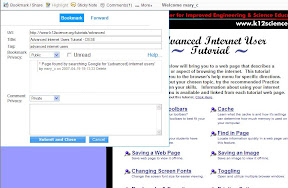
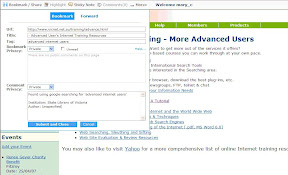
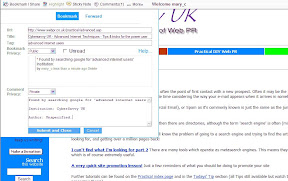
First I click 'Bookmark/share' and automatically the URL, page title and screenshot are recorded, after that I can add my own tags and comments to this page. In this case I added 2 comments, "Found while searching google for advanced internet users" and in the second comment I recorded the author and institution of the Web page.

Source #1 - Advanced Internet Users Tutorial


Source # 2 VICNET Internet Training


Source # 3 CyberSavvy UK - Advanced Internet Techniques


References:

Cybersavvy UK. (2003). Advanced tutorials. Retrieved April 25, 2007, from http://www.webpr.co.uk/practical/advanced.asp


State Library of Victoria. (2007). Advanced internet training - more advanced users. Retrieved April 24, 2007, from http://www.vicnet.net.au/training/advance.html


Stevens Institute of Technology. (2000). Advanced internet user tutorial. Retrieved April 19, 2007, from http://www.k12science.org/tutorials/advanced/


Labels:

Module 4: Boolean Search Task

Wednesday, April 18, 2007

My next task was to search with the same keywords 'advanced internet users' and think of a strategy for getting the best results for the following questions.

I searched using Google for this task.


  • the biggest number of hits relating to these key words


1. (internet AND users) advanced
282,000,000

2. internet OR users OR advanced
279,000,000


BEST RESULT

3. (advanced) internet AND users
291,000,000

My best result was 3.

I achieved this by specifying Google to first search for advanced, then follow it with internet users.


  • sources relating to skills-based information on these key words.

BEST RESULT

1. "advanced internet users"

18,000

Searching with quote marks surrounding the words made sure they were all included in any document Google returned. I found that I got lots of skills-based web sites for advanced internet users using this method.

  • information coming only from university sources

BEST RESULT

1. "advanced internet users" site:.edu

895,000

Searching with site:.edu meant that all results returned were from educational sources.

Labels:

Module 4: Search Engine Task

I searched for 'advanced internet users' on my most frequently used search engine, Google.

The first hit: Advanced Internet Users Tutorial - CIESE

The number of hits: 114,000,000


Next I tried the same search 'advanced internet users' using Copernic set to search 15 engines.

The first hit: Advanced Internet Users Tutorial - CIESE

The number of hits: 55


Comparison:
Google found a lot more results than Copernic, however my settings on Copernic specified that it was to only return 10 links from each engine, therefore using 15 engines limited my results to just 55.

Getting 55 more specific results is a lot less intimidating than getting 114,000,000 or so that may contain the words 'advanced internet users' ! :)

However, even though it returned only 55 results, Copernic did not perform best for me in this task. I feel that Google gave me the best results when searching for 'advanced internet users'.

Labels:

Module 4: Downloading tools for the web

Friday, April 13, 2007

1) Adobe's pdf reader.

I already own Adobe Acrobat 8 Professional edition, I've used it to compile various pdf documents together, cut and paste pages etc. A useful program.

Alternatives: Foxit Reader 2.0

Comparison: I personally prefer Adobe Acrobat to read pfd documents, as in my experience sometimes the Foxit reader can display the pdf file a little differently. The whole purpose of pdf documents is that they should look the same on any computer!

2) Flash/Shockwave Players

I have both Flash and Shockwave installed on my computer.

3) Media Players

I have tried Apple Quicktime player, Windows media player, and Real Networks Real One.

I prefer Windows media player . I found Apple Quicktime was too slow on my computer, and Real One player (free edition) was full of advertising.

Alternatives: Foobar2000

Comparison: After using Windows media player, Apple's itunes player, Apple Quicktime player, Real One player and Foobar2000, I found that Foobar2000 offered me the most features. The best points are it is quick loading, playlists are easy to sort, you can customize the layout, and it supports almost every music file format.


4) Search Manager/Combiners

I downloaded a copy of Copernic Meta for PC and tried it out while searching for web sites for my annotated bibliography of resources. My first impressions of this program is that I do get a more varied list of results than I usually do using Google.

5) Bookmark Manager

I downloaded Bookmark Buddy for Windows and I can't say I'm a fan of this program.

To me it seemed more complicated than my favourites folders on IE7, and although it does include a search function, which allows you to search through keywords etc, these extra functions did not really appeal to me, as I already have my favourites organised well in IE7.


6) Offline Browser/Copier:

After downloading WebCopier 4.5 I decided to try it out by copying my personal blog, as this would be a good page to have a copy of.

To download a blog from blogger.com, you have to put in your user name & password. This is a good measure, as it will help my blog from being copied by someone and uploaded elsewhere under a fake name.

On fellow NET11 student Sonia's tip I then tried SpiderZilla, a Firefox add-on. It's great to see that this program has many customizable settings for you to apply when copying a page. I decided to once again try copying my personal blog, and for the time being, left the settings on default. I may change these setting if the copying process takes too long.

Labels: